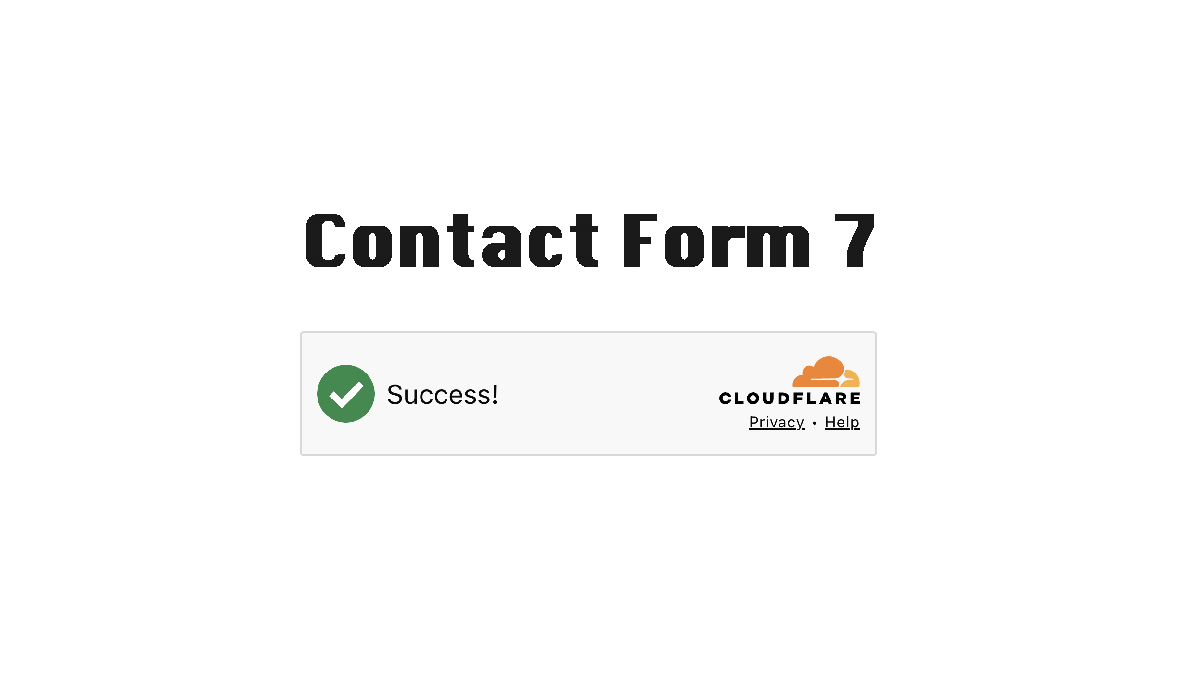
Cloudflare Turnstile helps to protect Contact Form 7 from bots and spam submissions. It is an alternative to Google reCAPTCHA. Contact Form 7 already supports Cloudflare Turnstile, so you don’t need to install any additional plugins.
How to Set up Cloudflare Turnstile with Contact Form 7
Step 1:
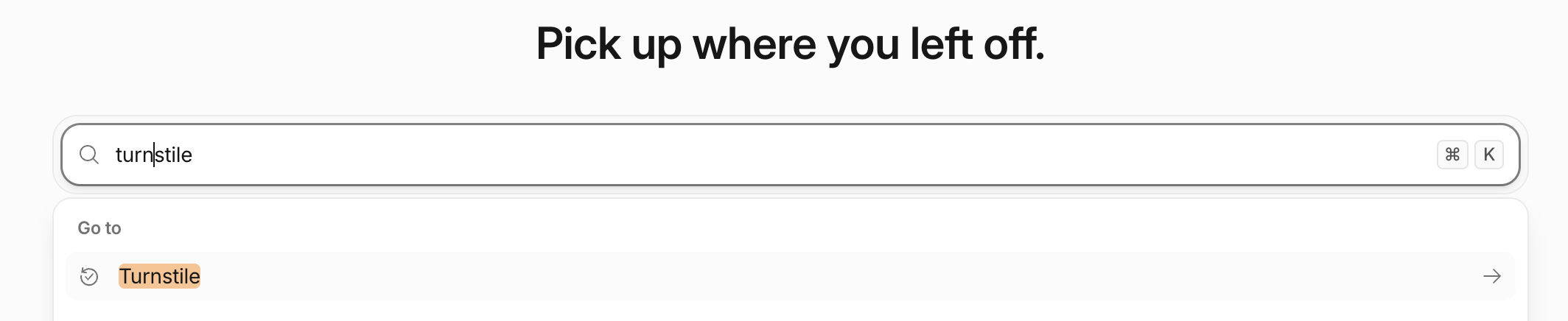
Create a Cloudflare account and search for “Turnstile” from the Cloudflare dashboard.
Step 2:
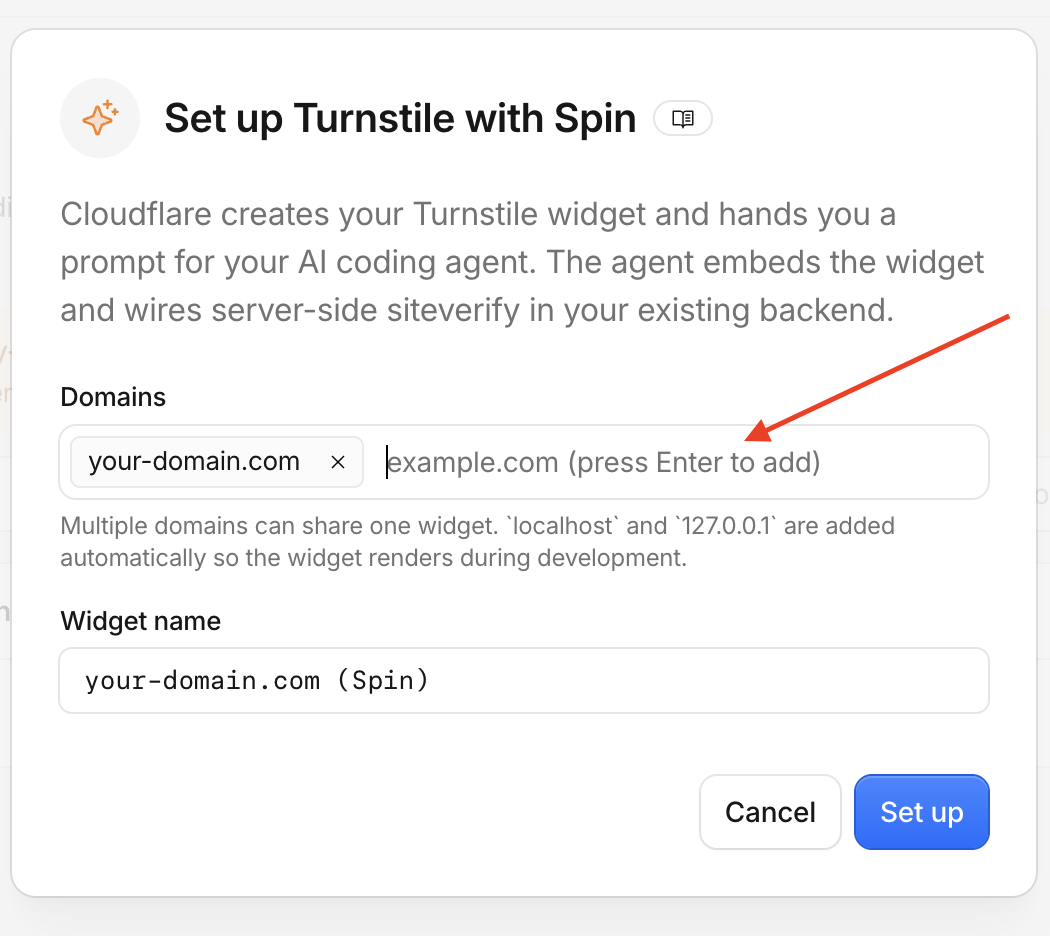
Click the Set up with Spin button. Then enter the correct domain name. It gives you the site key and secret key.
Step 3:
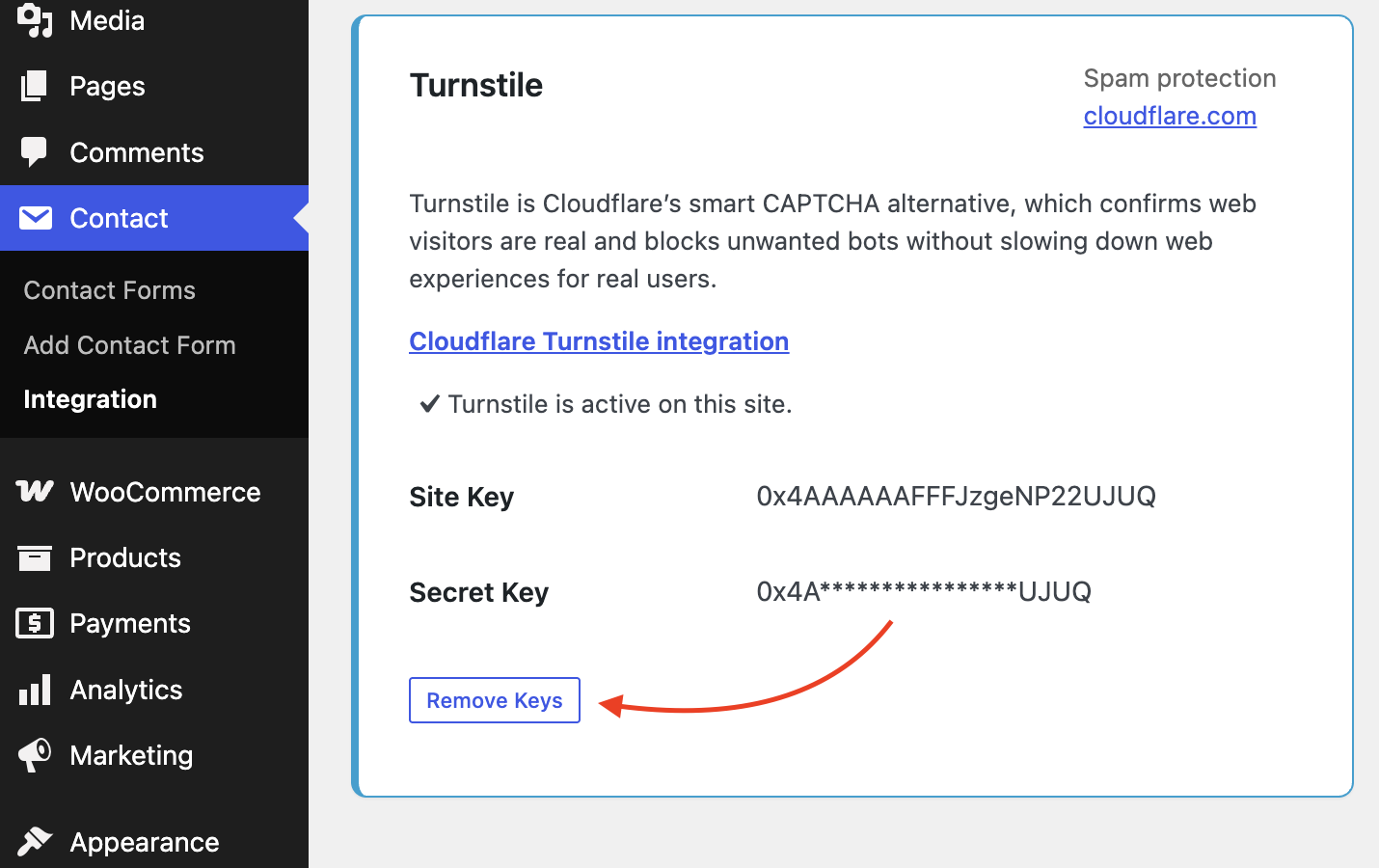
Navigate to wp-admin > Contact > Integration > Turnstile. Then copy the correct site key and secret key from the Cloudflare Turnstile widget settings. Finally, check the form from the frontend form page.

How to Fix Contact Form 7 Turnstile Error?
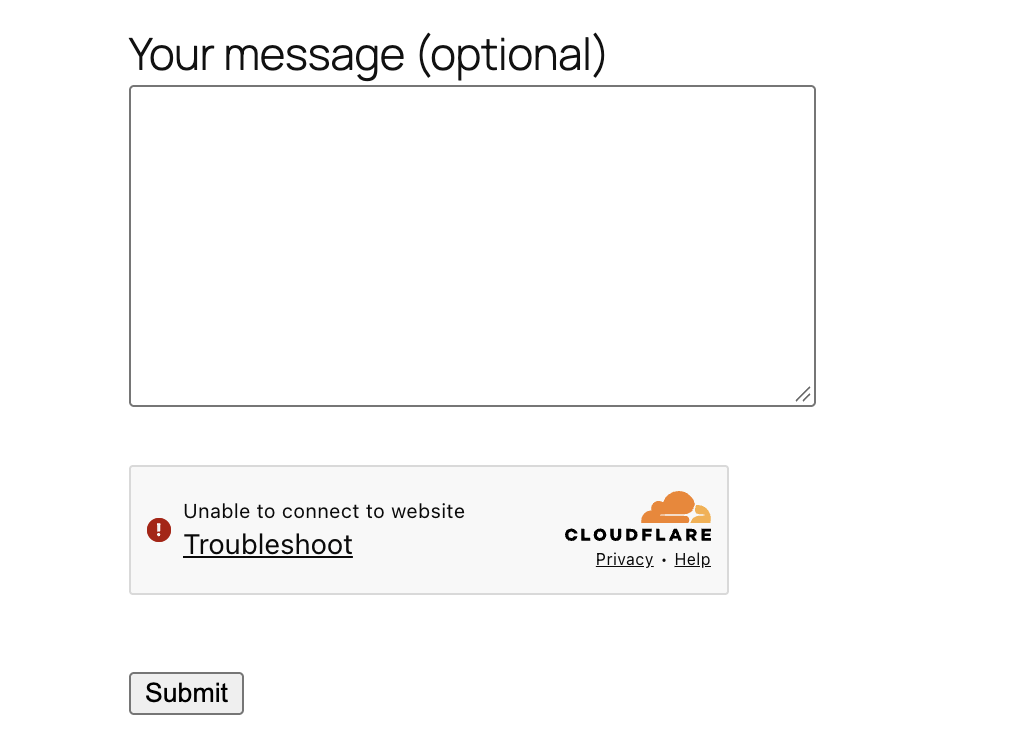
Every message is being blocked as spam with the following error: “There was an error trying to send your message. Please try again later.” You may also see “Unable to connect to website.”
We can fix it. First, test it from a different browser, then go to Cloudflare Turnstile widgets > edit widget > update the correct domain name. For testing the localhost server, add localhost or 127.0.0.1. Add the test site key and secret key.
Finally, remove the keys if already added the keys. Then copy and paste the keys again, then save changes.
Next, test the form from the frontend form page.
How to Change the Turnstile Widget to the Bottom of the CF7 Form?
You can change the position of the Cloudflare Turnstile widget from the top to the bottom of the form in two ways.
Option 1:
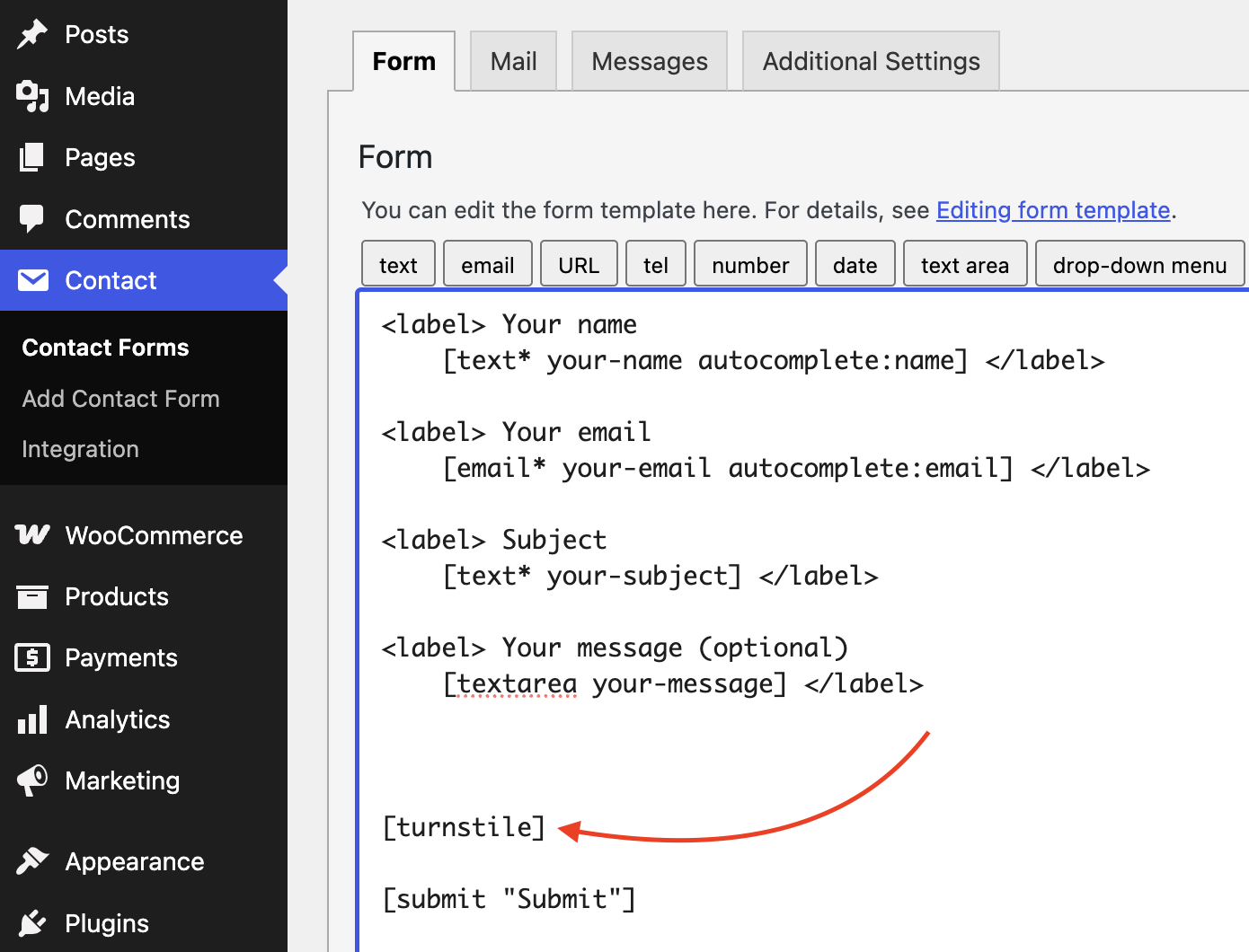
Go to wp-admin > Contact > Select the form > Edit
Add the [turnstile] shortcode above the submit button shortcode, as in the following image, then save the form.
Option 2:
Add the following code to your selected theme’s functions.php file. It will automatically change the position of the CAPTCHA widget on all forms, so you don’t need to edit each form manually.
|
1 2 3 4 5 6 7 8 9 10 11 12 13 14 15 16 17 |
add_filter('wpcf7_contact_form_properties', 'easy_wpcf7_contact_form_properties'); function easy_wpcf7_contact_form_properties( $properties ){ remove_filter('wpcf7_form_elements', 'wpcf7_turnstile_prepend_widget'); $service = WPCF7_Turnstile::get_instance(); if ( ! $service->is_active() ) { return $properties; } if( !is_admin() && !str_contains($properties['form'], '[turnstile]')){ $properties['form'] = preg_replace('/\[submit\b[^\]]*\]/', '[turnstile]$0', $properties['form']); } return $properties; } |