
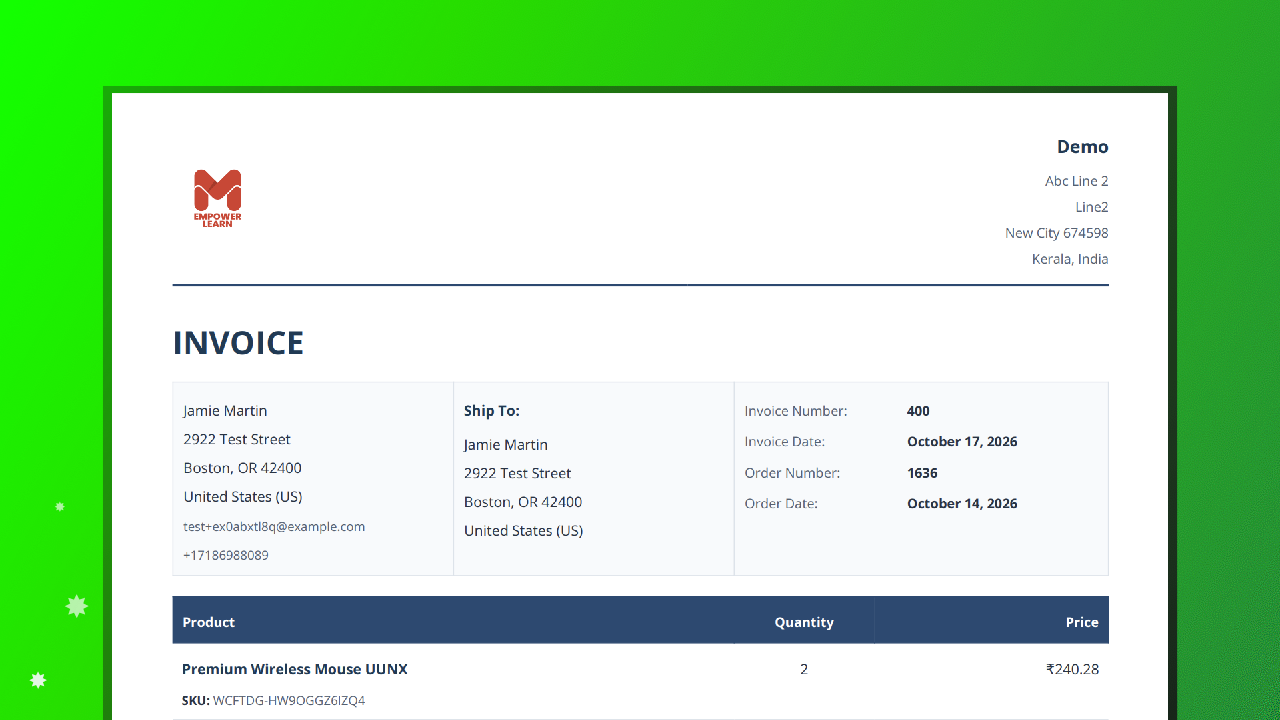
How to generate WooCommerce PDF invoices and packing slips?
First, install the WooCommerce PDF Invoices and Packing Slips plugin from WordPress.org, then run the Setup Wizard and fill in the required details.
Now, go to WP Admin > WooCommerce > Orders and click the Invoice icon next to the order.


Invoice: Demo
Packing Slip: Demo
How to Change WooCommerce Invoice Template?

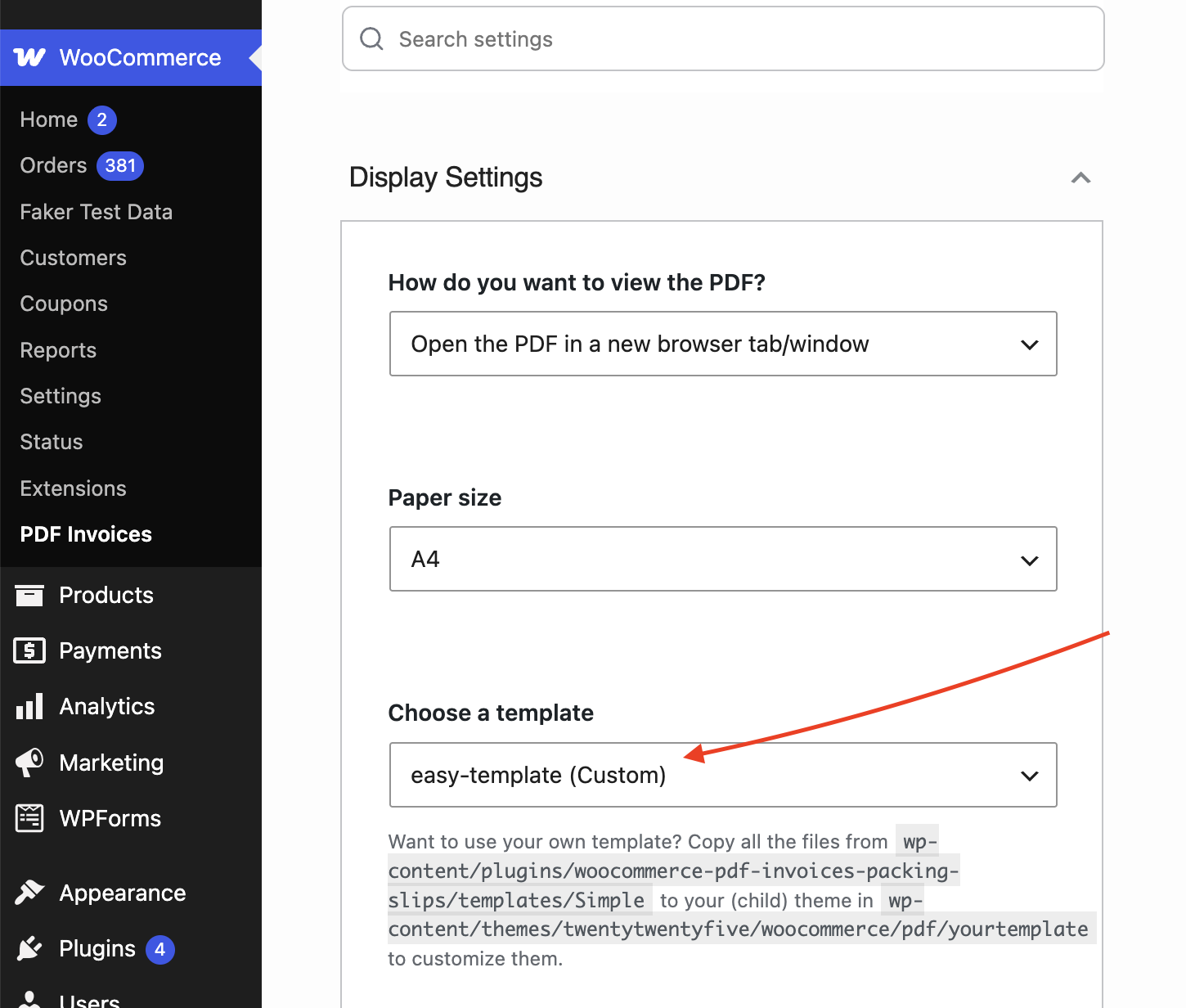
Download the template, then extract the ZIP file into the selected theme’s woocommerce/pdf/ folder. If the folder does not exist, create it.
Example path: wp-content/themes/twentytwentyfive/woocommerce/pdf/easy-template/
Next, go to WP Admin → WooCommerce → PDF Invoices → Display Settings and select Easy Template.
Finally, generate an invoice and check its layout to make sure everything displays correctly.
Finally, check the invoice layout.
Why WooCommerce Invoice or Packing Slip PDFs Don’t Reflect Edited Data?
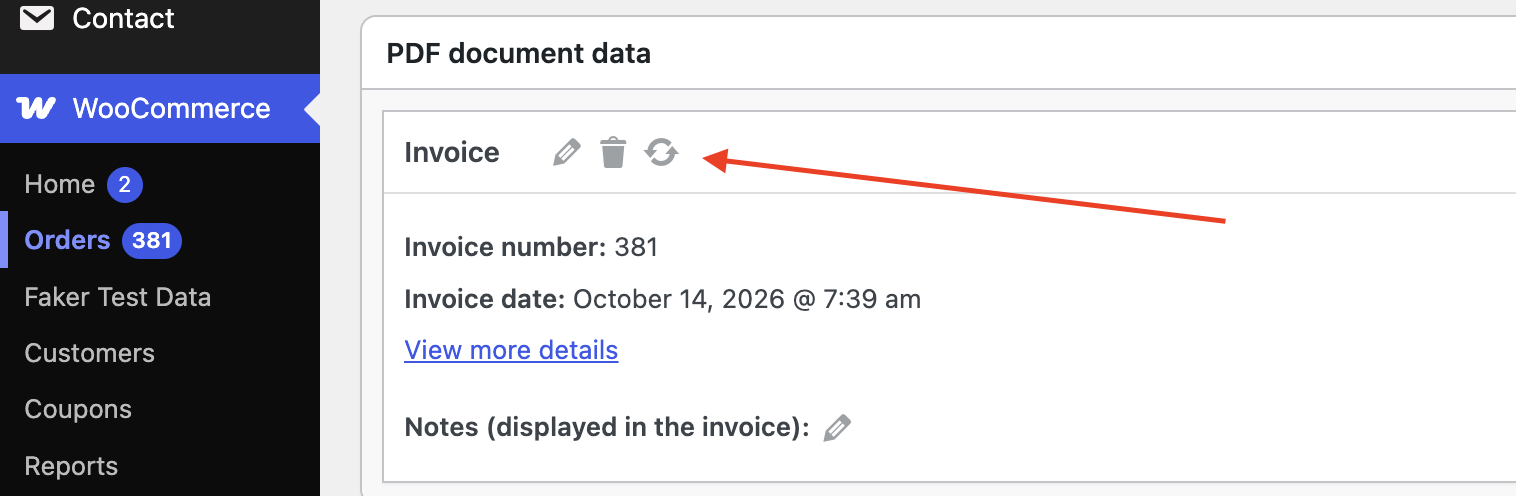
I noticed that when I edit the shop address or other information, the changes are not reflected in the invoice or packing slip PDFs because the PDFs were already generated. I need to regenerate the PDFs to reflect the updated information.
Go to wp-admin > Woocommerce > Orders > Select order > Regenerate

How to Regenerate Invoices for Multiple WooCommerce Orders?
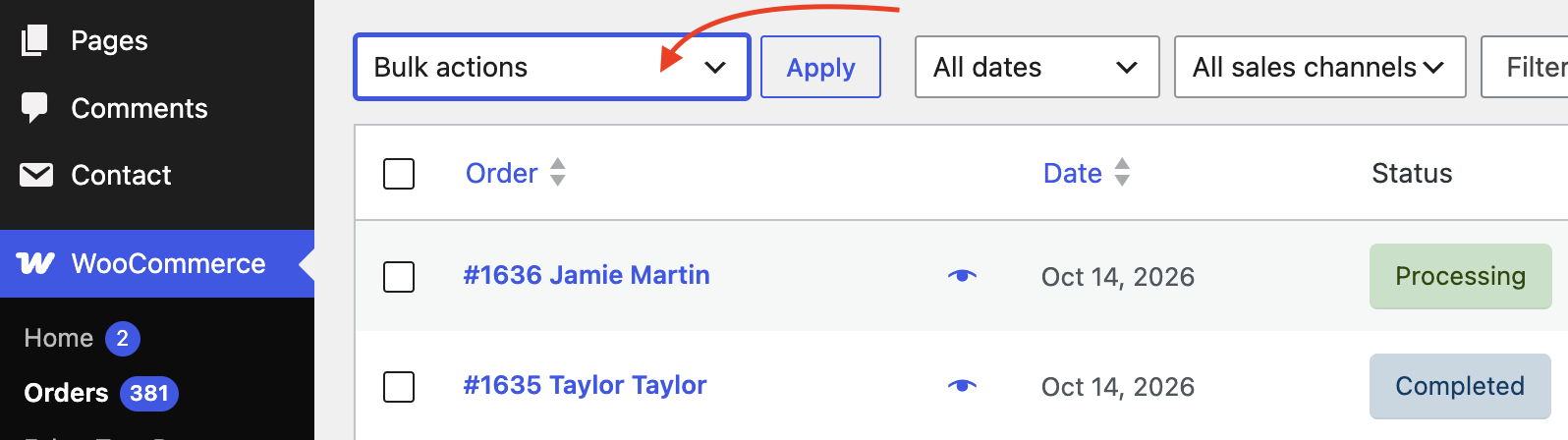
Add the following code to your selected theme’s functions.php file. Then you can see “Regenerate PDF invoices” in bulk actions.
Go to wp-admin > WooCommerce> Orders > select orders > Regenerate PDF invoices. Add the following code to your selected theme’s functions.php file. Then, navigate to WP Admin > WooCommerce > Orders, select the orders, and choose Regenerate PDF Invoices from the Bulk Actions dropdown.
Go to wp-admin > WooCommerce> Orders > select orders > Regenerate PDF invoices.

|
1 2 3 4 5 6 7 8 9 10 11 12 13 14 15 16 17 18 19 20 21 22 23 24 25 26 27 28 29 30 31 32 33 34 35 36 37 38 39 40 41 42 43 44 45 46 47 48 49 50 51 52 53 54 55 56 57 58 59 60 61 62 63 64 65 66 67 68 69 70 71 72 73 74 75 76 77 78 79 80 81 |
/** * Add a bulk action to WooCommerce orders. */ function wpo_custom_add_regenerate_invoice_bulk_action( $actions ) { $actions['regenerate_wc_invoices'] = 'Regenerate PDF invoices'; return $actions; } add_filter( 'bulk_actions-woocommerce_page_wc-orders', 'wpo_custom_add_regenerate_invoice_bulk_action' ); /** * Handle the invoice regeneration bulk action. */ function wpo_custom_handle_regenerate_invoice_bulk_action( $redirect_url, $action, $order_ids ) { if ( 'regenerate_wc_invoices' !== $action ) { return $redirect_url; } if ( ! current_user_can( 'manage_woocommerce' ) ) { wp_die( 'Permission denied.' ); } $main_instance = WPO_WCPDF()->get_instance( 'main' ); $processed = 0; foreach ( $order_ids as $order_id ) { $order = wc_get_order( $order_id ); if ( ! $order ) { continue; } $document_data = array(); $request = array( 'order_id' => $order_id ); $document = wcpdf_get_document( 'invoice', $order ); if ( ! $document ) { continue; } $document->regenerate( $order, $document_data ); $main_instance->log_document_creation_trigger_to_order_meta( $document, 'document_data', true, $request ); $main_instance->mark_document_printed( $document, 'document_data' ); ++$processed; } return add_query_arg( 'regenerated_wc_invoices', $processed, $redirect_url ); } add_filter( 'handle_bulk_actions-woocommerce_page_wc-orders', 'wpo_custom_handle_regenerate_invoice_bulk_action', 10, 3); /** * Display the result notice. */ function wpo_custom_regenerate_invoice_admin_notice() { if ( ! isset( $_GET['regenerated_wc_invoices'] ) ) { return; } $count = absint( $_GET['regenerated_wc_invoices'] ); printf( '<div class="notice notice-success is-dismissible"><p>%s</p></div>', esc_html( sprintf( 'PDF invoices regenerated for %d orders.', $count ) ) ); } add_action( 'admin_notices', 'wpo_custom_regenerate_invoice_admin_notice' ); |
How to Add Page Numbers to the Footer of WooCommerce PDF Invoices?
Add a filter hook to wpo_wcpdf_after_dompdf_render, then add the following code to your theme’s functions.php file.


|
1 2 3 4 5 6 7 8 9 10 11 12 13 14 15 16 17 |
add_filter( 'wpo_wcpdf_after_dompdf_render', 'wpo_set_footer_data' ); function wpo_set_footer_data( $dompdf ){ $canvas = $dompdf->getCanvas(); $font = $dompdf->getFontMetrics()->getFont( 'DejaVu Sans', 'normal' ); $canvas->page_text( $canvas->get_width() - 115, $canvas->get_height() - 25, 'Page {PAGE_NUM} of {PAGE_COUNT}', $font, 8, array( 0, 0, 0 ) ); return $dompdf; } |